
GoSocial Bio Hub: A Step-by-Step Guide to a Professional Bio Page
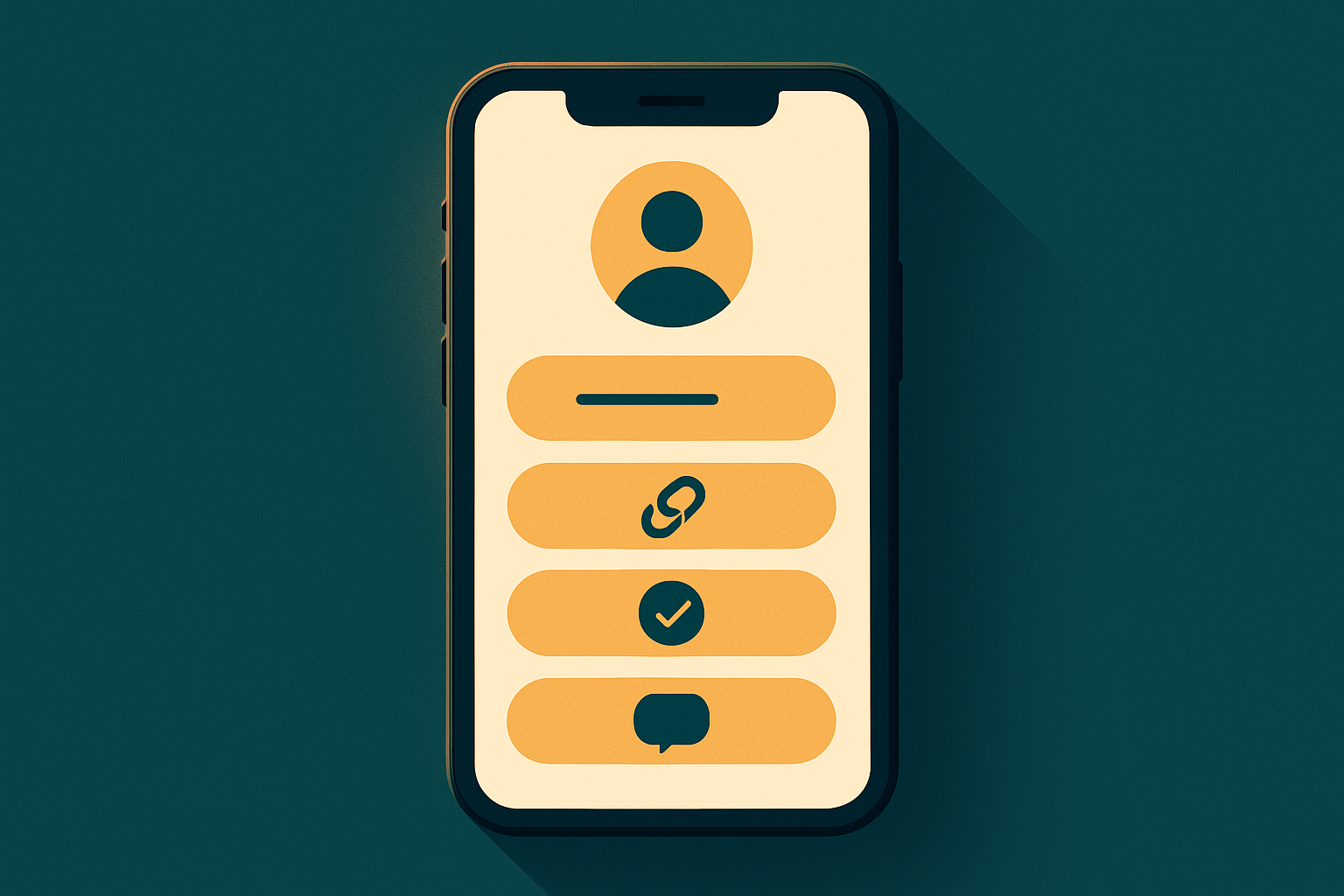
In the previous guide we covered why you need a bio page. Now for the practical side: how to build a professional page on GoSocial Bio Hub step by step, from scratch to publishing and measuring.
Step 1: Create your account and start your page
Sign up for free, then from the dashboard pick “My Bio Page.” Give your page a name (your brand) and a clean link (slug) like gosocialai.com/bio/your-brand. This link is permanent, so choose it carefully to represent your brand.
Step 2: Add your core identity
Upload your photo or logo, write a short headline summarizing what you offer, and a one- or two-line bio. These first elements are what visitors see immediately, so make them clear and expressive. Remember the page is Arabic-first, so write in Arabic (formal or dialect, depending on your audience); you can add the English version to enable the language toggle.
Step 3: Add your buttons and links
This is the heart of the page. Add the buttons that matter, in the order you want:
- WhatsApp: with a pre-filled message the customer starts the conversation with.
- Menu: opens your digital menu directly if you’re a restaurant or café.
- Store, map location, call, and social accounts.
You can group buttons into sections (like “Order now” and “Follow us”), reorder them easily, and feature the most important ones so they stand out visually.
Step 4: Use rich blocks
A bio page isn’t only buttons. Add interactive blocks that raise its value:
- Video embed: paste a YouTube, TikTok, or Vimeo link and the video appears inside the page.
- Countdown: for a product launch or an offer’s end, creating a sense of urgency.
- Text / FAQ block: for a quick explanation or answers to the most common questions.
- Lead form: collects name, phone, and email; submissions arrive in a dedicated tab with a notification.
Step 5: Customize the design
Make the page look like your brand: choose a primary and accent color, a background (solid, gradient, or pattern), an elegant Arabic font from the font library, a button shape (rounded, pill, or square), and an avatar shape. There are also ready themes (classic, dark, light, bold) computed live from your colors, with a live preview beside you as you edit.
Step 6: Download the QR and share the page
Every page has a downloadable, print-quality QR in your brand colors with your logo in the center. Put it on flyers, tables, packaging, or stories. Visitors scan it and your page opens instantly. You can also copy or share the link in one tap.
Step 7: Track analytics and improve
After publishing, open the “Analytics” tab. You’ll find views, clicks, and click-through rate (CTR), top links, device and country breakdowns, and a heatmap of your busiest hours, with the option to export the data to CSV. Use these numbers to reorder your buttons: put the most-clicked at the top, test different titles, and watch where your visitors come from — all without cookies and without storing personal data.
Writing button labels that “sell”
The button label is the first thing a visitor reads, and a single word can change the click. Make the label a clear verb that describes the outcome: “Order on WhatsApp” beats “WhatsApp,” “Book your appointment” beats “Booking,” and “See the menu” beats “Menu.” Start with a verb, be specific, and avoid vague words. If you have an offer, mention it in the label itself: “Order now — 15% off.” These tiny wording details lift your click rate noticeably at no extra cost.
Connect your page to your campaigns
A bio page isn’t an isolated island. Put its link in the bio of all your accounts (Instagram, TikTok, Snapchat), in your email signature, on your business card, and in your YouTube descriptions. And if you run an ad or campaign, use UTM tags on the outbound buttons inside the page to know exactly which campaign drove the clicks. This way the bio page becomes a smart hub for all your marketing paths, and you measure each channel’s impact in one place.
A pre-publish checklist
Before you hit “publish,” quickly review these points to ensure a professional page:
- Main goal on top: is the first button really what you want visitors to do?
- Clear text: are the button labels short and understandable at a glance?
- Identity: do the colors, font, and image express your brand?
- Mobile test: did you try the page on your phone and confirm every button works?
- Correct links: does each link open the right destination (WhatsApp, menu, map)?
- QR ready: did you download the QR code for print use?
How to evolve your page over time
A page isn’t something you publish once and forget. Treat it as a living thing: review analytics weekly, move the most-clicked buttons up, and remove what gets no attention. When you launch a new offer, use the countdown block to create urgency and let it end automatically. For a specific season (Ramadan, holidays, big sales) adjust the colors or add a seasonal block. These small, continuous updates make a big difference in results over the long run.
Pro tips
Keep the number of buttons reasonable so you don’t overwhelm visitors, and always lead with your main goal at the top. Update offers via the countdown block instead of changing the link. Use UTM tags on outbound buttons to know your traffic source in your analytics tools. Keep the tone authentic and close to your audience, because the feel of the language is part of trust. And finally, don’t wait for perfection: publish a good version today and improve it based on real data instead of guessing. Start now for free and apply these steps in under fifteen minutes, then read how restaurants specifically benefit from a bio page in the dedicated guide.
Related articles
A Bio Page for Restaurants: Menu, WhatsApp & Location in One Link
A restaurant with a single bio link loses orders. Learn how to combine your menu, WhatsApp ordering, location, and offers into one fast bio page with a QR for tables.

What Is a Link-in-Bio Page? And Why Your Business Needs One
Instagram and TikTok give you a single link in your bio. A link-in-bio page turns that one link into an organized gateway to everything you share: your store, menu, WhatsApp, and accounts.